How to add descriptions to a dataset
A client sends you an export. The columns are called amt, st, cust_ref and reg_dt. The
person who built the file knows that amt is in cents, that a st of 3 means the order was
canceled, and that reg_dt is the day the customer registered, not the day of the order. You may
know it too, after a phone call. The AI does not know it. It reads the column names, their types
and a few sample values.
A description is where that knowledge goes. This page covers what a useful description says, and the four ways to give Totsum descriptions of your tables and columns.
What the AI does with a description
When you ask a question, the AI model writes a database query. To write it, it reads a summary of the tables that look relevant to your question, with each table’s name, its columns, their types and a few sample values. In Totsum, each column’s description is written into that summary, on the line under the column’s name, and the table’s description is written under the table’s name. So a description is read every time its table is used to answer a question.
A description also reaches the answer. When the values of a column are codes and its description gives the meaning of each code, the answer can say “bus” instead of “route type 3”. When the description gives a unit, the answer can carry the unit.
For some questions, the answer is only correct with a description. If amt is in cents and
nothing says so, a total of sales is a hundred times too large. If nothing says that a st
of 3 means canceled, a count of orders includes the canceled ones. These facts are not in the
values, so the description is where the AI learns them.
What a useful description says
Picture a new colleague who opens the file for the first time. What would they ask you about this column? The answer you would give them is what the description needs to say. The AI is in the same position as that colleague, and the description is where it reads your answer.
A description is free text in your own words, with no required format. The six examples below are facts that often need writing down. Your data may need others, depending on where it comes from and what you want to learn from it.
What the column is. “Status of the order.” A name like st could mean status, state or
store, and a name like ref could mean almost anything. When the name allows more than one
reading, the description says which one is right.
The unit. “Amount in euro cents, including VAT.” Without it, an amount of 500 could be five euros or five hundred.
What the codes mean. “1 = Pending, 2 = Shipped, 3 = Cancelled.” Putting each code next to its meaning keeps the list easy to read, for the AI and for the next person who opens the file.
What an empty or odd value means. “-99 = not asked. Empty = the customer did not answer.” Totsum notices some of these codes on its own, but it cannot know why they are there.
Which date it is. “Date the customer registered, not the date of the order.” Two date columns in one table are easy to confuse, for a person as much as for an AI.
What it links to. “Customer number; matches id in the customers table.” Totsum finds many of
these links by itself; a description settles the ones it cannot be sure of.
The same goes for the table itself. A table called Sheet1 or export_final tells the AI
nothing about what it holds. One or two sentences are usually enough, and they say what the
table holds and what one row is. “Sales invoices of the Belgian entity, January to June 2026. One
row per invoice line.” The second sentence tells the AI what a count of rows is counting.
Short is fine. A description only has to hold the fact that the column name does not give.
Way 1: type it on the Schema tab
Click a table in the Ingest pane. It opens in the center with three tabs: Overview, Data and Schema. Open Schema. It shows one line per column, and the last column is the Description. Empty cells say “Add a description…”.
Double-click a cell and type. Enter saves the text; Shift+Enter starts a new line. The description of the table goes in the Table Description field at the bottom of the tab. There is no Save button: a description is kept as soon as you finish typing it, the AI Assistant reads it from the next question on, and it is saved with the workspace.
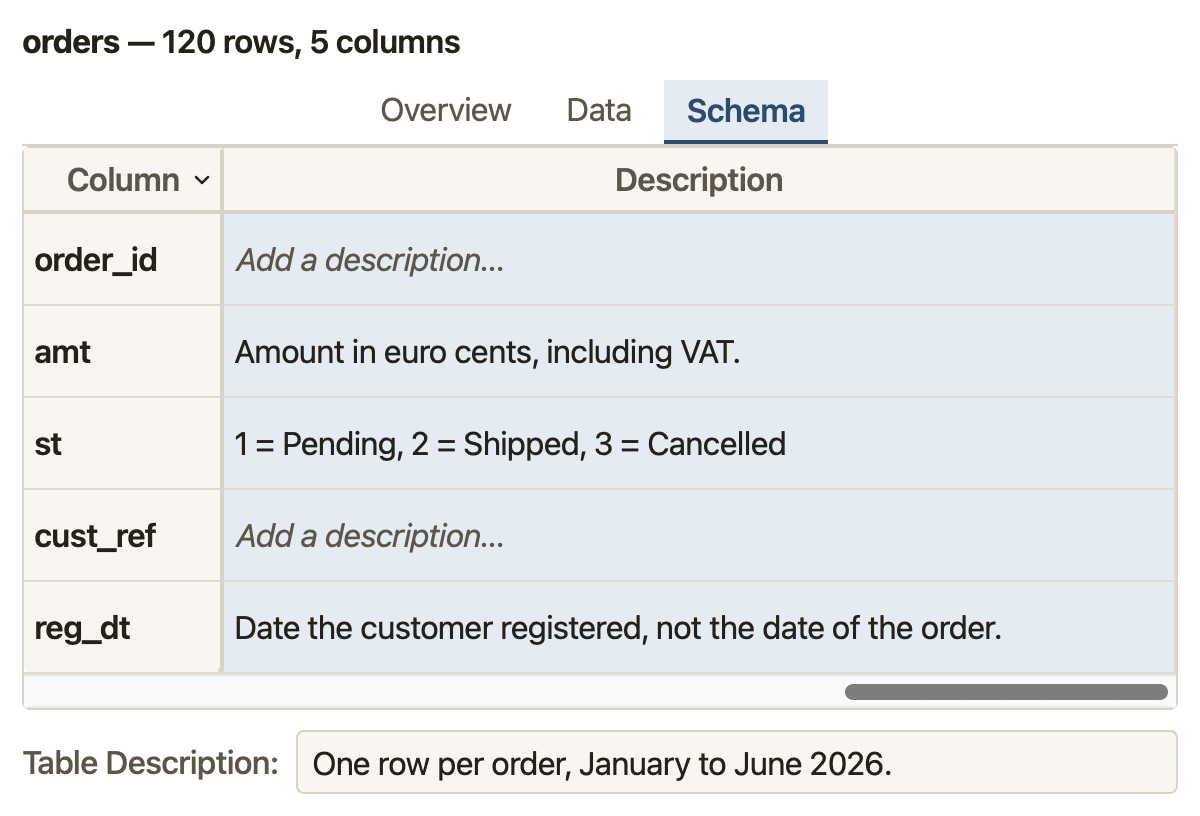
This is the right way for the handful of columns that matter. You rarely need to describe every column: the ones with unclear names, units, codes and ambiguous dates are enough.
Way 2: let Totsum read the documentation that came with the file
Exports often come with their documentation, such as a README in the same folder, a data dictionary, a sheet called Legend in the workbook or a few lines of notes above the table. When you load a file, Totsum reads the names of the files beside it and the names of the workbook’s sheets, and looks for any that sound like documentation. At that point it reads names only, not contents.
When it finds something, the AI Assistant offers it: “Found DataDocumentation.txt — use it to describe your data?”, with a Read it link. Totsum opens the file only when you click that link. The AI model then reads it on your machine and extracts the descriptions. The reading runs in the background and pauses while one of your questions is being answered. When it has added descriptions, the assistant says how many.

What it reads fills only the tables and columns that have no description yet. A description you typed stays as you typed it.
Way 3: import a data dictionary
When the documentation lives somewhere else, give it to Totsum directly. In the Edit menu, choose Describe My Data from a Document…. The Describe My Data… link opens the same command. The AI Assistant shows that link when fewer than half of your tables, or fewer than half of your columns, have a description.
Drop a document that lists your column names next to what they mean, such as a data dictionary, an export specification or the notes from whoever gave you the data. It can be a PDF, a Word document (.docx), a text file or a Markdown file. A scanned PDF, which holds pictures of the pages rather than text, cannot be read. One document can cover several tables.
The AI model reads the document and matches the names it finds to your tables and columns. The result is a preview with one line per match. Each line has a checkbox, and all of them are ticked at first. A line on a yellow background, marked “[overwrites existing]”, would replace a description that is already there. Read the list, untick what is wrong, and click Apply Selected. The descriptions appear on the Schema tab, where you can still edit any of them.
![The preview of Describe My Data from a Document: “Found 1 table, 4 column descriptions”, then five ticked lines for the orders table. The line for amt has a yellow background and ends with “[overwrites existing]”.](/screens/blog/descriptions-import-preview.png)
The AI model does the matching, and it can be wrong, which is why the preview comes first. Totsum applies the ticked lines when you click Apply Selected.
Way 4: keep the description row of an Excel sheet
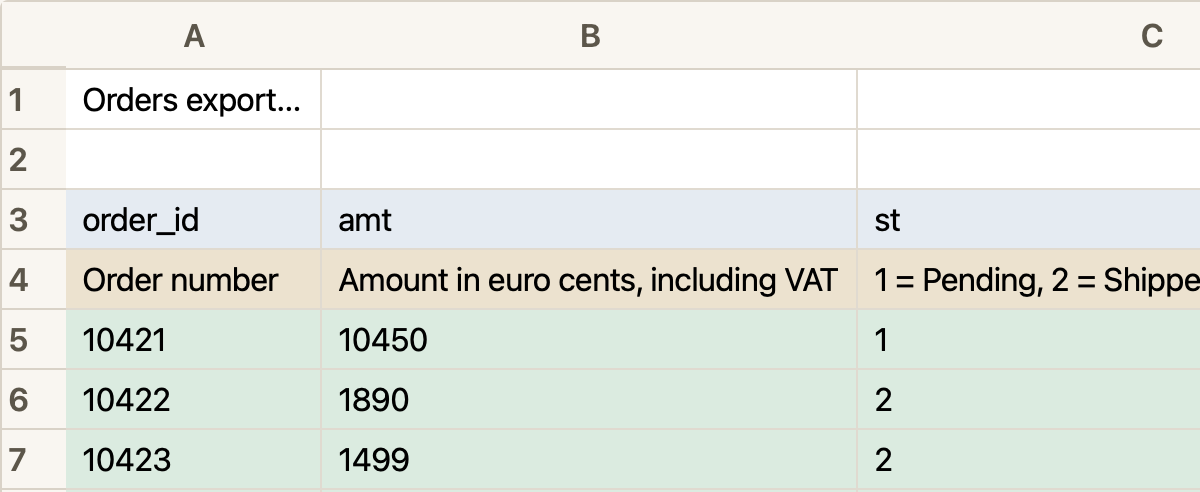
Some workbooks carry a row of explanations between the column names and the data. When you drop a workbook, Totsum opens the Excel Import dialog and proposes a region for each sheet, with the header rows, an optional description row and the data in different colors. If the description row is not marked, select it in the grid and click Description under Mark as. Each cell of that row becomes the description of its column, and the row is not imported as data.
Notes for the whole dataset
Some facts belong to no single column, such as the period the data covers, the currency of every amount, the region that was left out or the rows to distrust. Those go in Dataset Notes, in the Edit menu. They are saved with the workspace.
Dataset Notes are also the place for the words your company uses. A question may ask about “active customers” or “the first quarter” when no column has that name. If, for your team, an active customer is one who ordered in the last 90 days, or the financial year starts in April, write it in a note. When the AI writes the query, it reads the notes together with your question, so it reads your words with the meaning your company gives them.
The notes Totsum adds by itself
On some columns, you will find text you did not write. Totsum adds a short note when a column holds something its name does not show. The notes cover cases such as these.
- A value such as -1 or -99 that probably stands for “missing” rather than a real number.
- A column called
Country_Namethat holds numbers. When Totsum has found that these numbers refer to rows of a countries table, the note tells the AI to get the country’s name from that table instead of showing the number.
Most columns get no note. On a column that already has a description, the note is added after your text rather than in its place. The notes are ordinary text, and you can edit them like your own descriptions.
An answer still needs checking
Descriptions give the AI the facts it cannot guess. They do not turn a first look into a checked result. An answer can still be wrong, with or without descriptions. That is why the results you keep are gathered in a follow-up report, for your qualified reviewer to judge. What to send your analyst explains what that person needs from you.
The Ingest page of the documentation has the full detail of every dialog mentioned above.
Totsum Data Explorer is in a private beta, free in its first phase. You can apply for the beta; the free trial opens after it.